如何為Excel圖表添加替代文字(使用AI的簡易方法)

是否曾寄出滿是圖表的Excel報表,卻發現對使用螢幕閱讀器的同事毫無用處?這就是替代文字(alt text)的用武之地——它如同數據視覺化的字幕。猜猜怎麼著?像Excelmatic這樣的AI工具能在幾秒內生成完美的替代文字。

替代文字的重要性超乎想像

想像這情景:你的銷售儀表板顯示Q3成長,但視障同事只從螢幕閱讀器聽到「圖片」。替代文字能解決這問題,因為它能:

  • 讓圖表對所有人皆可存取
  • 提升SEO(搜尋引擎無法「看見」圖片但能讀取替代文字)
  • 作為忙碌同事的便利備註

傳統方法 vs. AI方法

手寫替代文字耗時費力,你需要:

  1. 分析圖表模式
  2. 總結關鍵要點
  3. 保持簡潔又具描述性

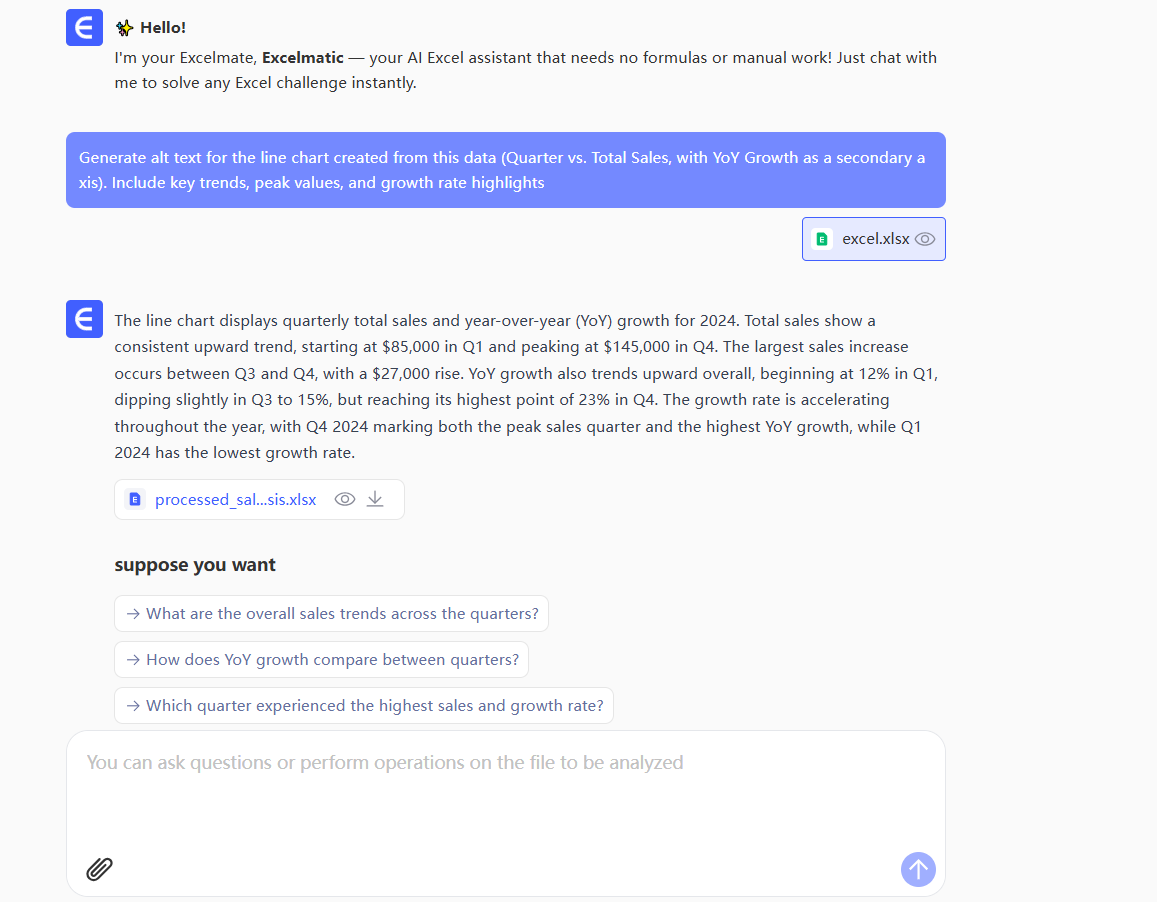
使用Excelmatic的AI只需:

  1. 上傳圖表

sc

  1. 讓AI分析趨勢
  2. 獲取自動生成、擬真描述

exc

逐步指南:專業級替代文字添加

1. 創建圖表(智能方式)

別用基礎Excel圖表,試試Excelmatic的視覺化工具,它能:

  • 自動建議最佳圖表類型
  • 為你標註關鍵趨勢
  • 準備替代文字建議

2. 用AI生成替代文字

Excelmatic的簡易流程:

  • 右鍵圖表 →「生成替代文字」
  • AI掃描數據點與趨勢
  • 產出如「折線圖顯示Q1-Q3營收成長28%,八月達峰值」的草稿

3. 微調描述

再好的AI也需要人工潤飾:
✔ 保持125字元以內
✔ 開頭點明主要洞察(「Q4銷售翻倍」)
✔ 提及異常模式(「三月突然下滑」)

進階無障礙技巧

  1. 複雜圖表:使用Excelmatic的「詳細描述」模式進行多句解釋
  2. 團隊流程:建立替代文字模板確保報表一致性
  3. SEO加成:自然融入關鍵字(「電商轉換率」)

不只替代文字:實現完整報表無障礙

Excelmatic的無障礙工具包還能:
🔍 自動檢查色彩對比
📊 建議無障礙配色方案
🗣️ 生成數據語音摘要

立即嘗試

  1. 打開最新銷售報表
  2. 選一張圖表
  3. 使用Excelmatic免費替代文字生成器
  4. 分享無障礙版本給團隊

感受到差異了嗎?這就是AI與包容性結合的力量。你的數據現在屬於所有人。

附註:需要為上百張圖表自動化處理?Excelmatic的批次功能讓你喝咖啡時輕鬆搞定。 🚀

(註:保留所有技術格式與路徑,包含圖片連結、星號強調等Markdown語法)
AI賦能數據,決策勝券在握!

無需寫代碼與函數,簡單對話讓匡優Excel自動處理數據、生成圖表。立即免費體驗,感受AI如何顛覆你的Excel工作流 →

立即免費體驗

推薦文章

如何為Excel圖表添加專業邊框(逐步指南)
Excel 操作

如何為Excel圖表添加專業邊框(逐步指南)

Discover the step-by-step process to add and customize borders in Excel charts, plus how AI tools like Excelmatic can automate this and other data presentation tasks effortlessly.

Gianna •
如何在Excel圖表中添加斜率線(及其重要性)
Excel 操作

如何在Excel圖表中添加斜率線(及其重要性)

Slopes transform basic Excel graphs into powerful trend analysis tools. Here's a step-by-step guide to adding them manually, plus how AI-powered Excelmatic simplifies the entire process.

Gianna •
如何在Excel中分析李克特量表數據(簡易方法)
Excel 操作

如何在Excel中分析李克特量表數據(簡易方法)

Likert scale data doesn't have to be complicated. This step-by-step guide shows you how to transform survey responses into actionable insights using Excel (and how AI tools like Excelmatic can do it in seconds).

Gianna •
如何在Excel中為日期添加月份(聰明方法)
Excel 操作

如何在Excel中為日期添加月份(聰明方法)

Tired of manual date calculations? Discover how Excel's EDATE function can automate your date adjustments - and how Excelmatic takes it to the next level with AI-powered date handling.

Gianna •
如何在Excel中自動新增月份(輕鬆無煩惱)
Excel 操作

如何在Excel中自動新增月份(輕鬆無煩惱)

Tired of manually updating dates in your spreadsheets? Discover the smart way to add months automatically in Excel, plus how AI-powered tools like Excelmatic can take the pain out of date calculations.

Gianna •
在Excel儲存格中換行的3種簡單方法
Excel 操作

在Excel儲存格中換行的3種簡單方法

Struggling to fit multiple lines of text in a single Excel cell? This guide shows you three foolproof methods to add line breaks, plus how AI-powered Excelmatic can handle it automatically.

Gianna •